
Embedding A YouTube Video
Video Embed Example + Step by Step Embed Instructions
Video Embed Example
Below you will see an example of a YouTube video embed; don't worry, embedding a video is super easy. Below the video you will find step by step instructures on doing this yourself.
Step 1.
Find the YouTube video you want to embed and click the Share button

Step 2.
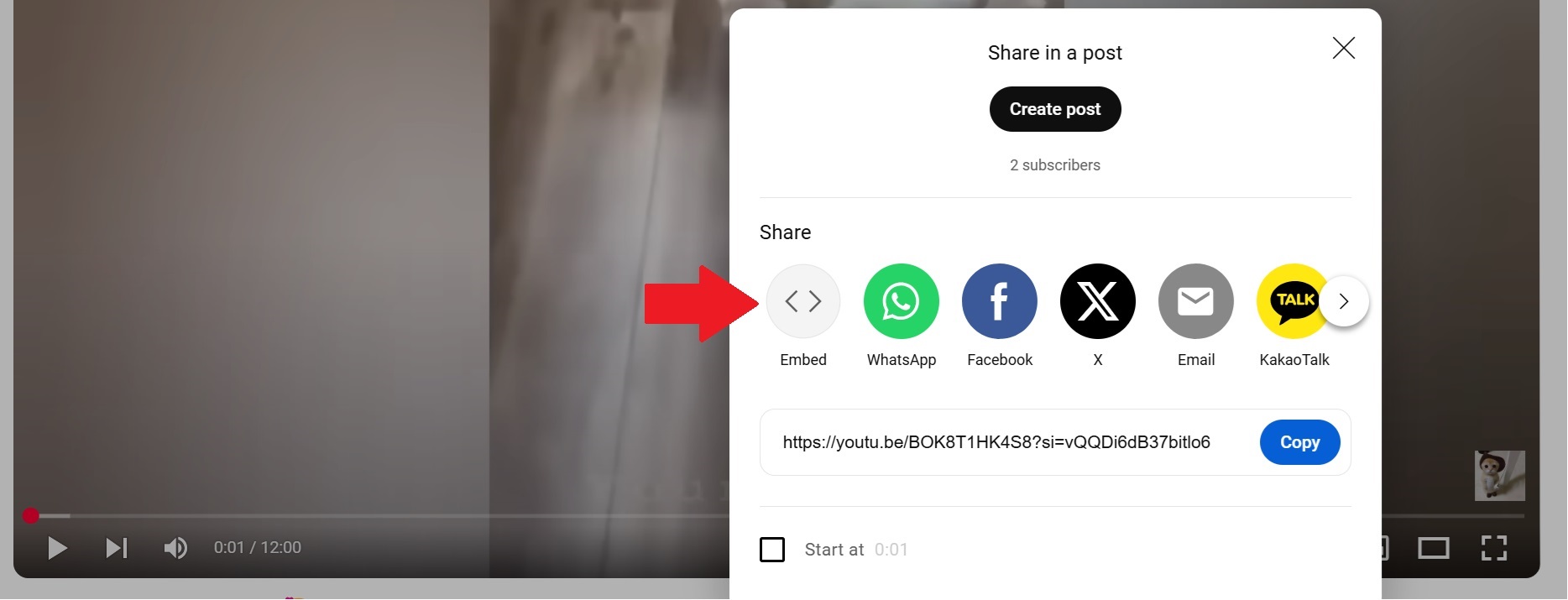
In the Share modal on YouTube, click the "Embed" icon
Step 3.
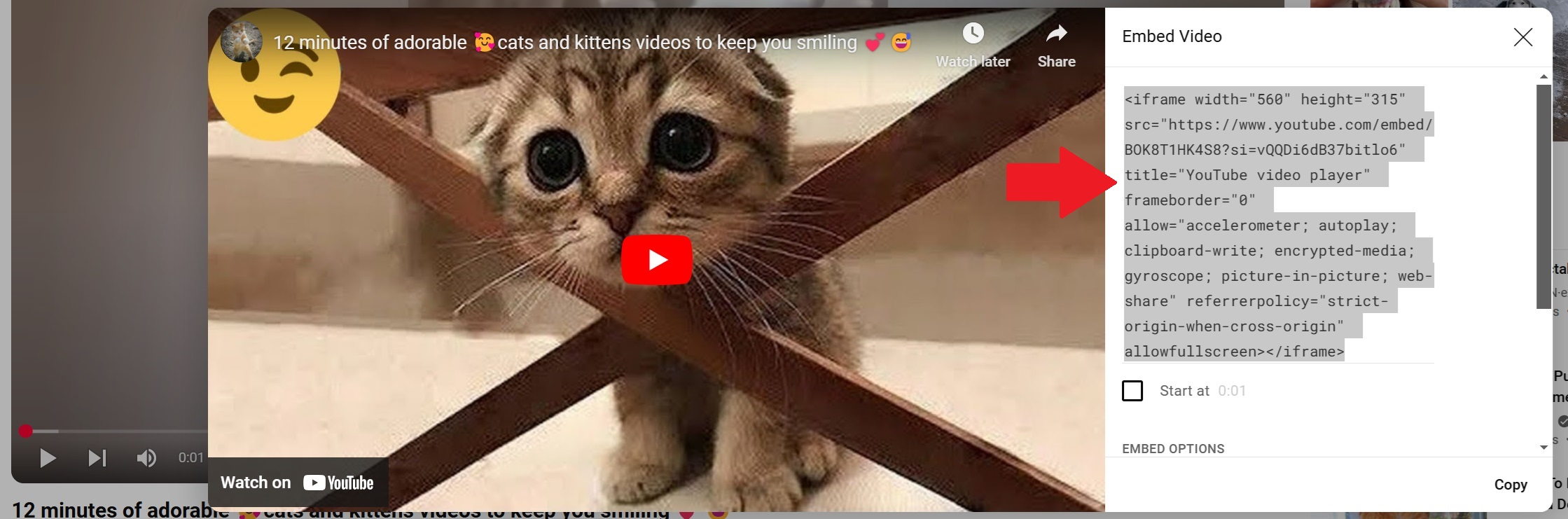
Copy the Embed code from YouTube
Step 4.
Back in iRecommend, in the Text Block, hover over the small paragraph menu where you want to add the video. Click the Menu and find the +Add option.

Step 5.
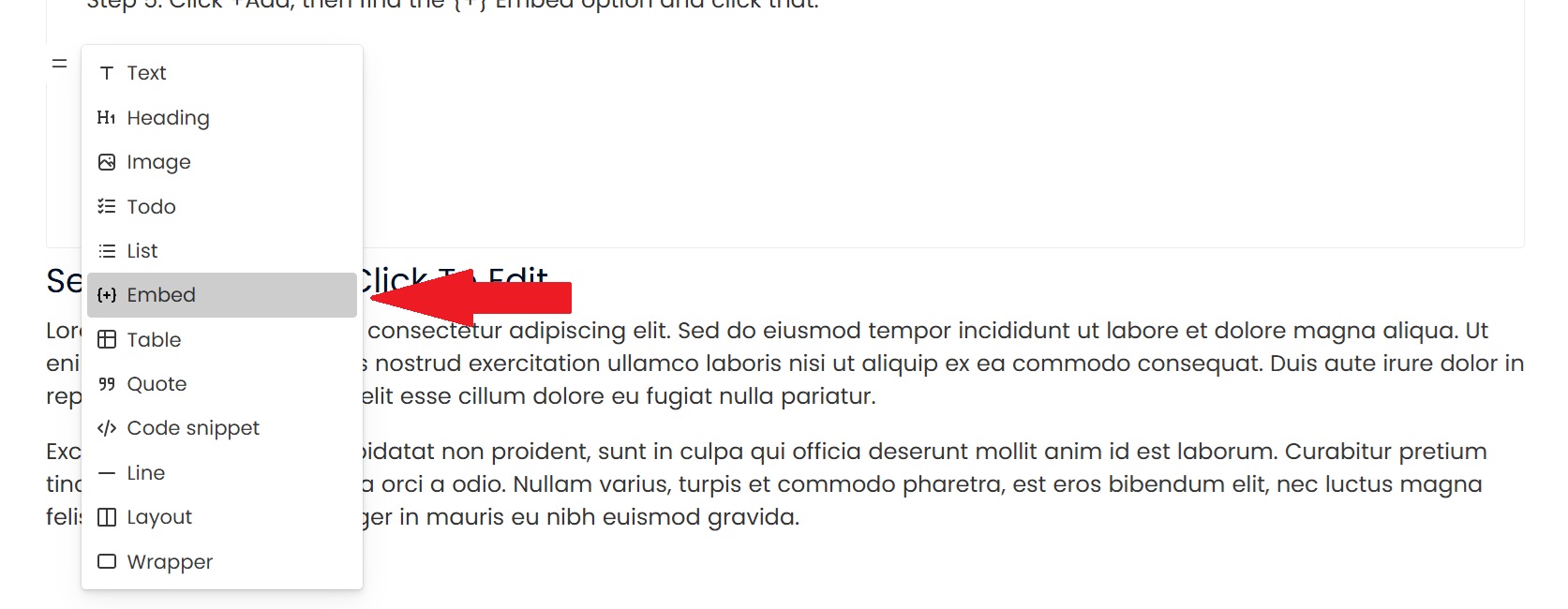
Click +Add, then find the {+} Embed option and click it.
Step 6.
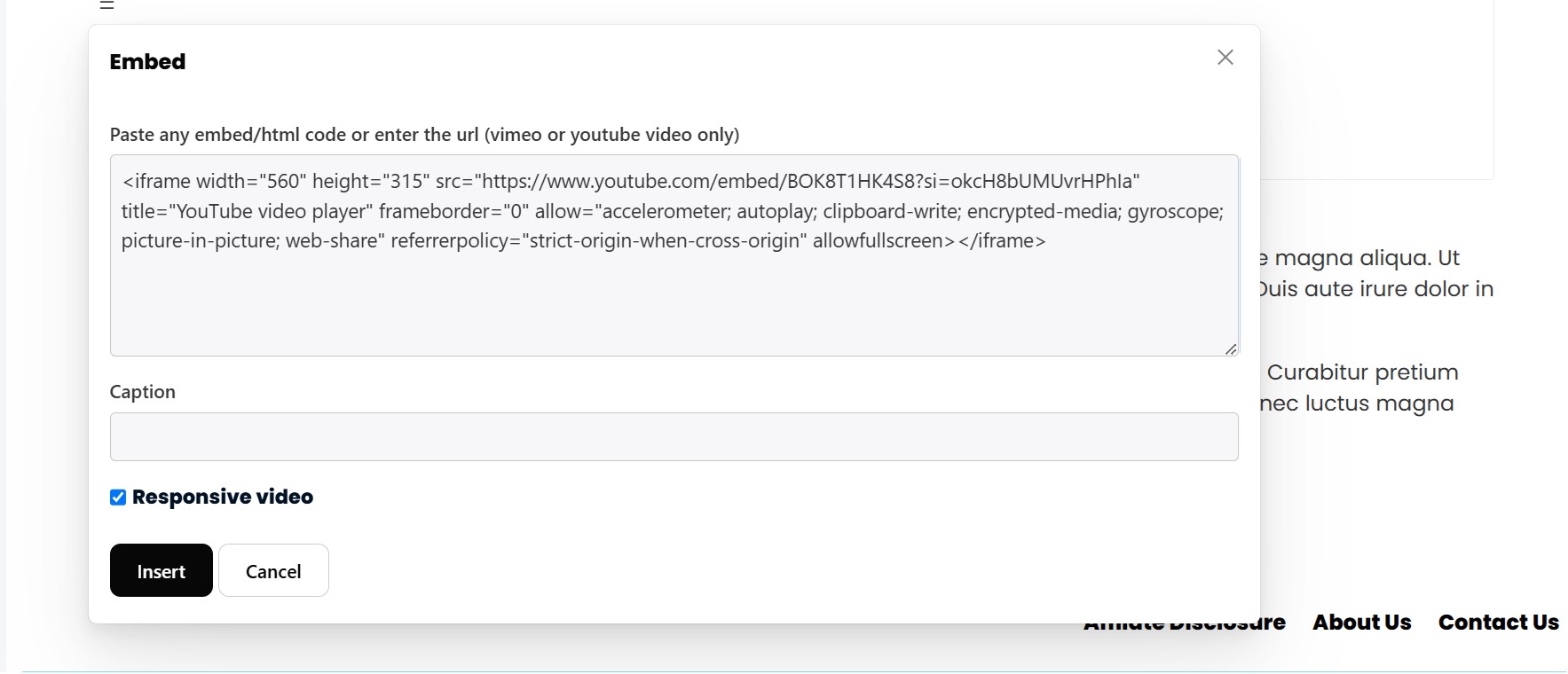
Paste the Embed Code that you got from your YouTube video into the Embed modal that appeared when you clicked {+} Embed. Note: check the Responive Video checkbox if it isn't checked by default. This will ensure the video looks correct on mobile devices.
Step 7.
Finish up by clicking Insert to embed your video on the page.